
Channel Visibility is determined when a Channel is created for the first time. Channel visibility can be changed at any time, but editing the channel.
There are 3 visibility levels
- Private: The Channel cannot be viewed by anyone except for the owner.
- Certain Teams: The Channel can only be seen by team members of specific teams.
- All Company: Anyone in the company can see the Channel.
In this article you will learn how to:
- Check your Channel's visibility
- Change your Channel's visibility
Check your Channel's visibility
- On the Channel Page, click My Channels, and locate the Channel you want to share.
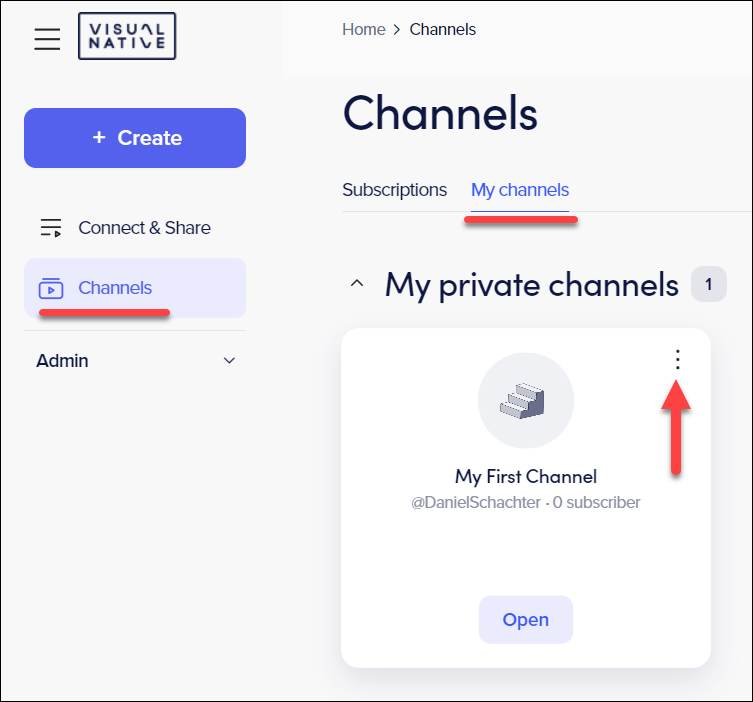
- Click Edit Channel.
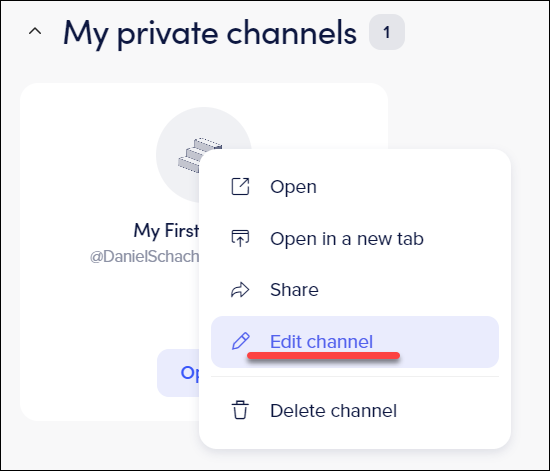
- Check the Channel visibility.
In the example below, we can see that the Channel visibility is set to All Company, and no teams have been subscribed to the channel.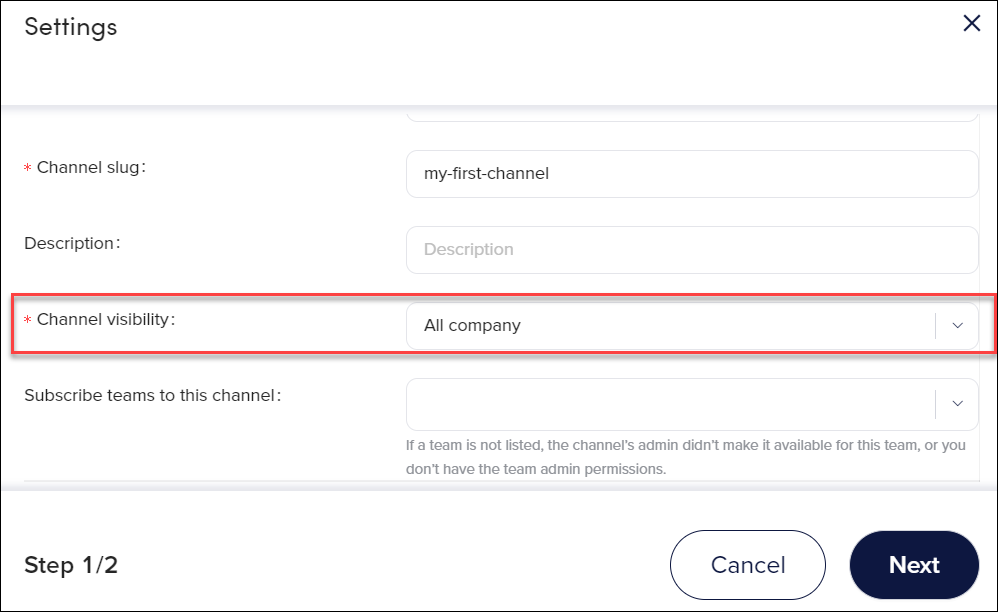
Change your Channel's visibility
- On the Channel Page, click My Channels, and locate the Channel you want to share.
Click
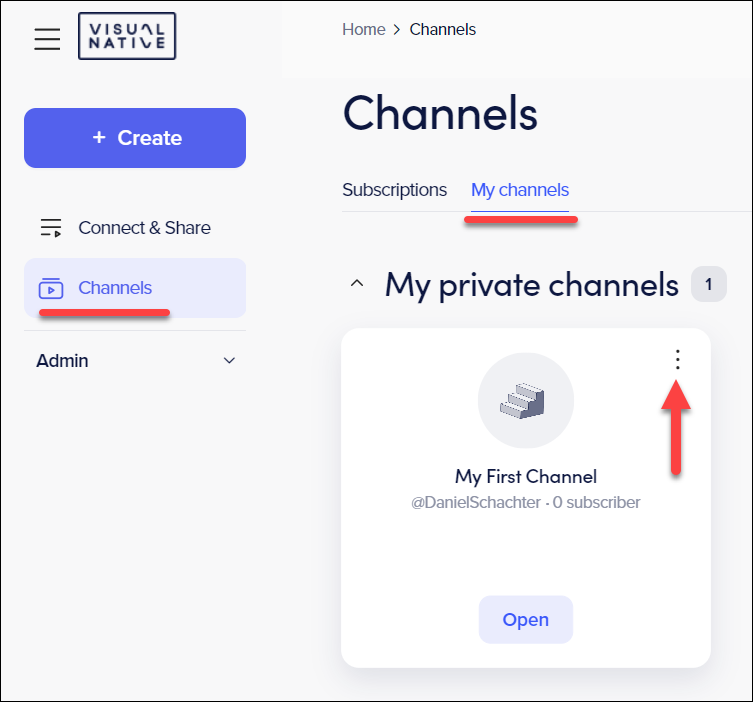
- Click Edit Channel.
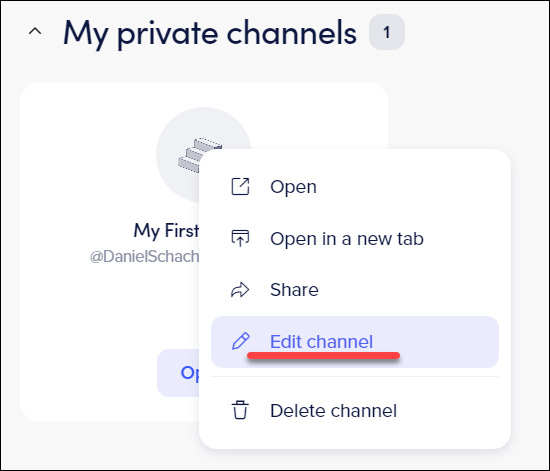
- Change the Channel Visibility.
All Company: Anyone that has a license in your organization can access your Channel
Certain Teams: Only members licensed by specific teams can access your Channel
Private: No one else can see it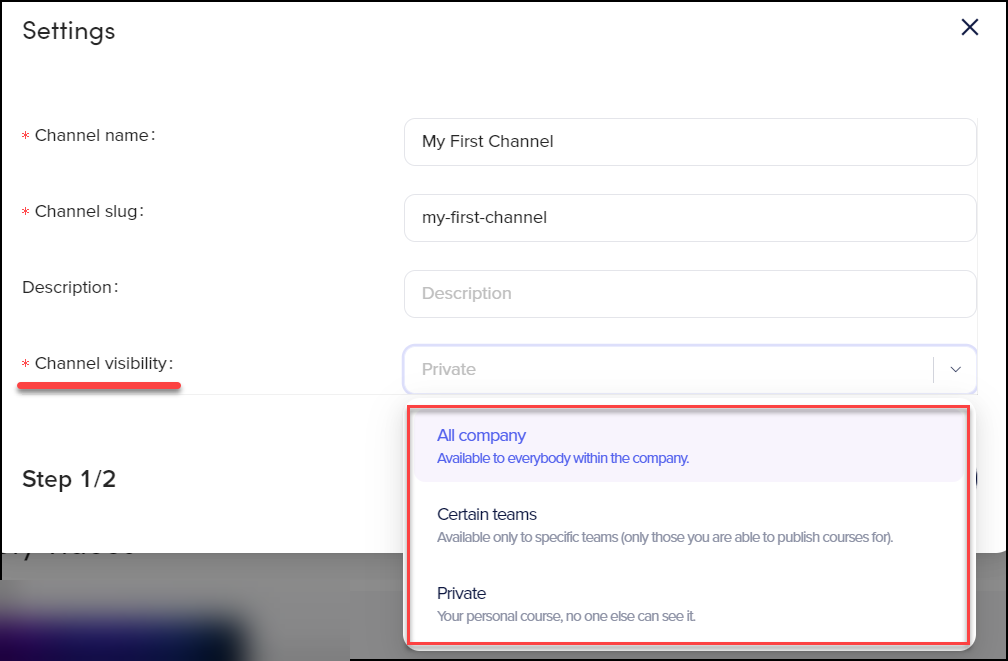
The Visibility has now been updated.