
The Analytics page in the avatar builder shows how your Live Interactive Avatars are being used across every channel: your Powtoon workspace, SCORM / LMS and public links. Use it to track sessions, learner scores and pass rates, and to download session transcripts.
Live Avatar analytics is rolling out to Powtoon Enterprise accounts. If you don't see your own avatars' data yet, contact your Customer Success Manager.
Open Live Avatar analytics
- In your Powtoon workspace, click Live Avatars in the left menu, then click Create a live avatar to open the avatar builder.
- Click Analytics at the top right of the page.
- Use the date menu at the top left to choose Last 7 days, Last 30 days, Last 90 days or All time.
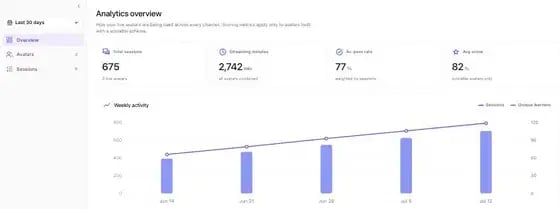
Overview
The Overview page gives you a summary of all your live avatars for the selected period:
- Total sessions, Streaming minutes, Av. pass rate and Avg score: your headline numbers. Pass rate is weighted by sessions, and average score only counts avatars that are scored.
- Weekly activity: sessions and unique learners for each week.
- Sessions by channel: how many sessions started from your Powtoon workspace, a SCORM package in your LMS, or a public link.
- Certification health: the share of learners who passed or didn't reach the pass threshold.
- Live avatars: a table with one row for each avatar.
Avatars
Click Avatars in the left menu to compare your avatars. Each row shows the avatar's interaction mode, sessions, pass rate, average score and total minutes. Click any avatar to open its session analytics.
Sessions
Click Sessions to see every session: one learner, one avatar, one sitting. For each session you see the learner, the avatar, the date and time, where the session started, its duration, the score and whether the learner passed. Click a column heading to sort, and click the download icon to download the session transcript.
Good to know
- Scores and pass results only apply to avatars that are scored, such as Open questions avatars with a passing rate. For Conversational and Role-play avatars, these columns show N/A or a dash.
- Learners who start a session from a public link are shown as Anonymous.
- Origin shows where each session started: Powtoon workspace, SCORM / LMS or Public access.
Related articles
How to create a Live Interactive Avatar
How to publish and share a Live Interactive Avatar
Still need help?
Contact our Customer Support Team.