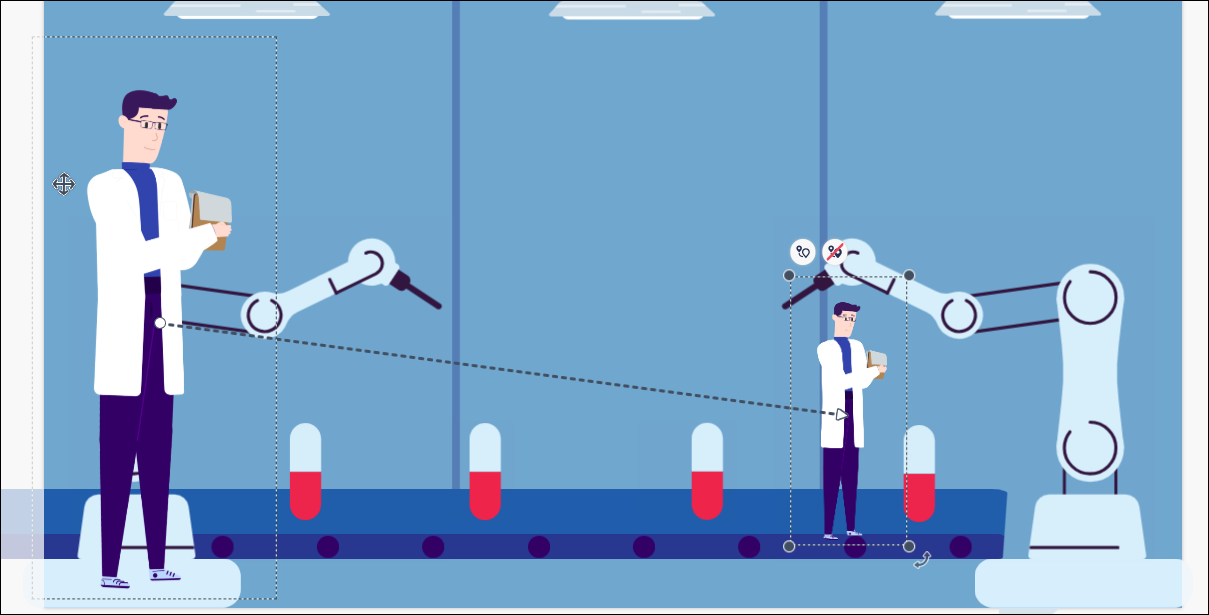
A to B 




How to Move an Object on a Slide
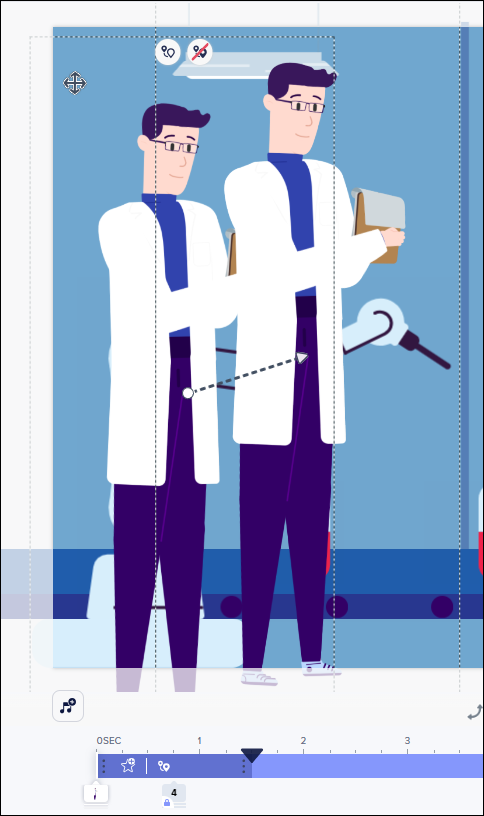
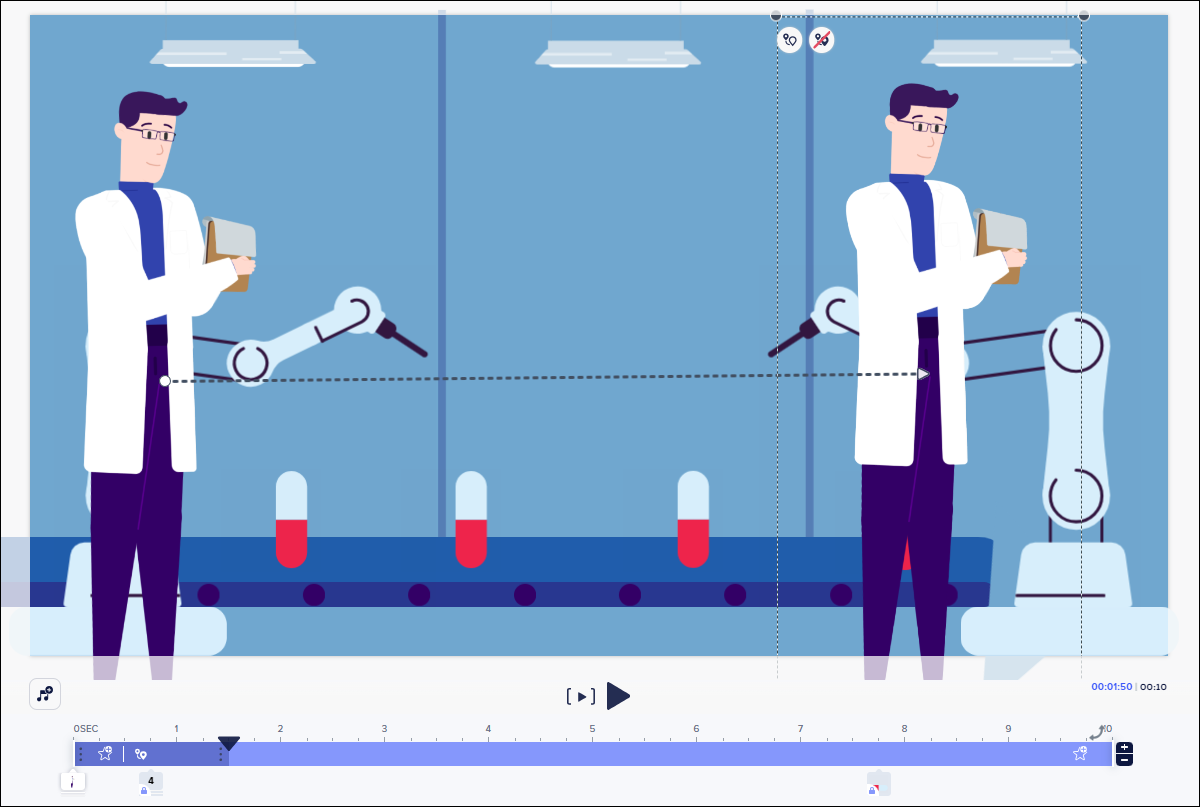
- In your slide, select the object that you want to move. In this example, the scientist will walk across the scene.
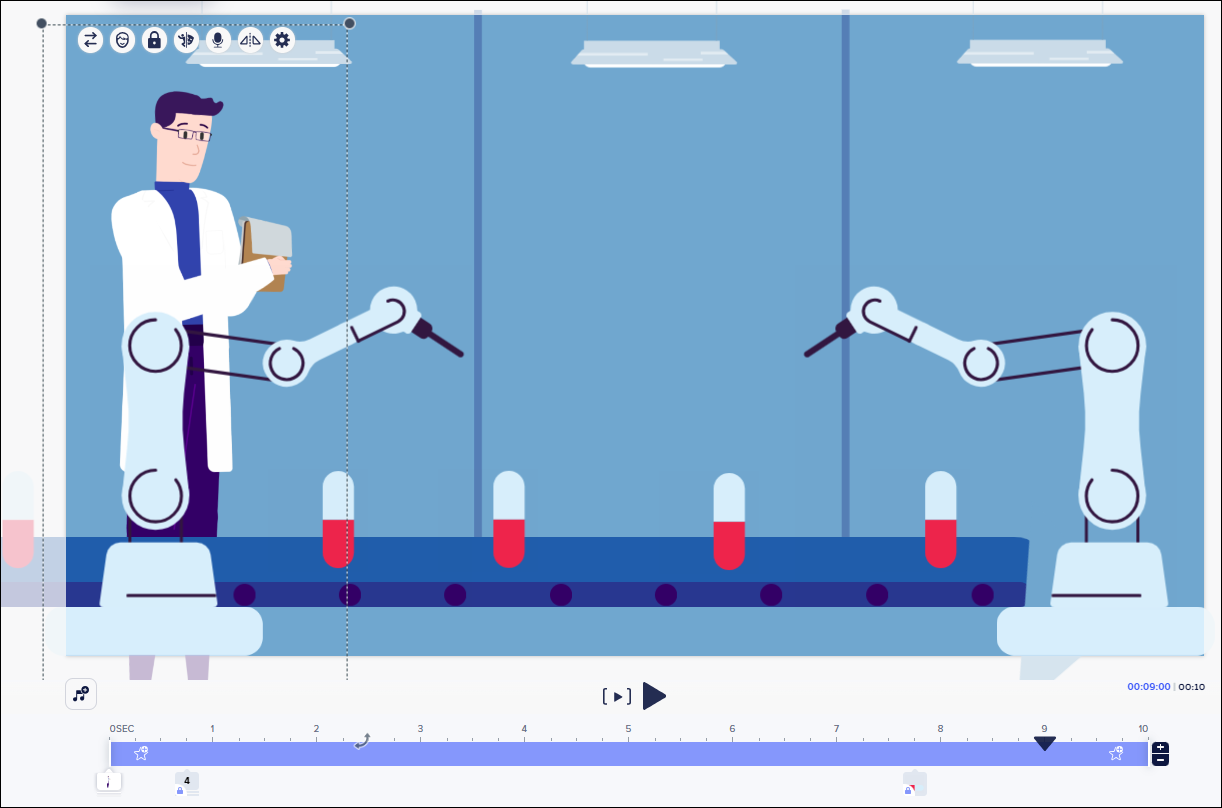
- Click the Settings gear

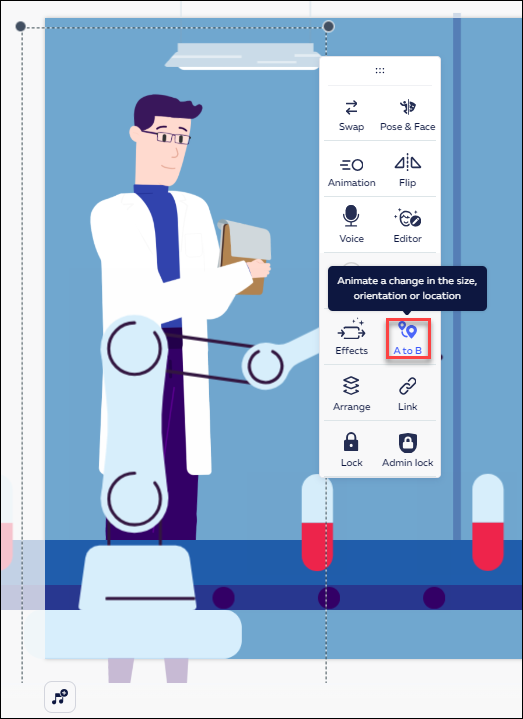
- On the pop-up menu, click A to B.
Note:
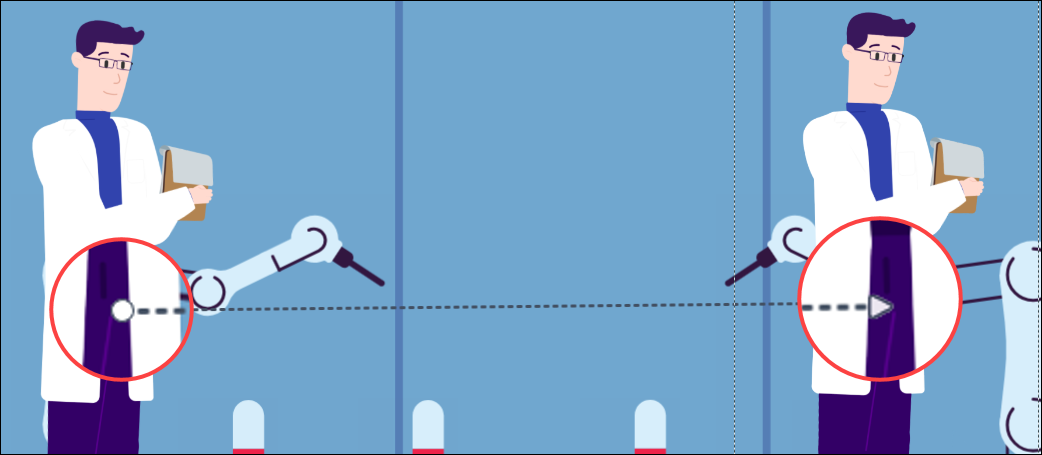
circle triangleNote:
Cancel 'A to B'Rotating an object in motion
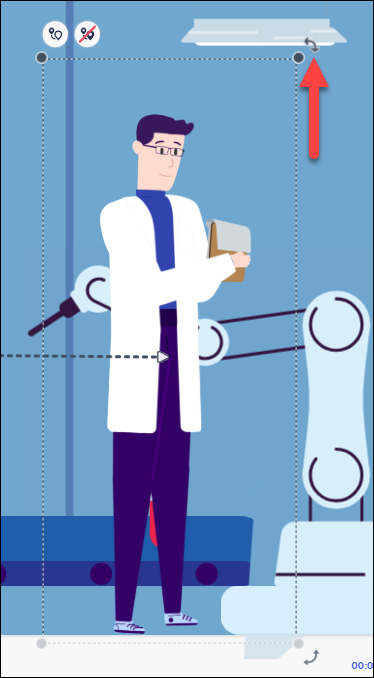
- After moving the duplicated object to the destination of the movement, select the object.
- Rotate the duplicated object using the rotation handle (see screenshot below).

Changing the size of an object in motion
Note:
This feature cannot be applied to text.- After moving the duplicated object to the destination of the movement, select the object.
- With your mouse, grab a corner of the object and resize the object to the desired size.