
Your Brand Kit keeps every video on-brand by storing your logos, color palette and fonts in one place. This article shows Organization Admins how to update an existing Brand Kit. To set one up for the first time, see Creating a Brand Kit.
Before you start
- Brand Kits are only available to users with Org Admin rights.
- Changes to a Brand Kit only take effect once you click Save.
How to open a Brand Kit
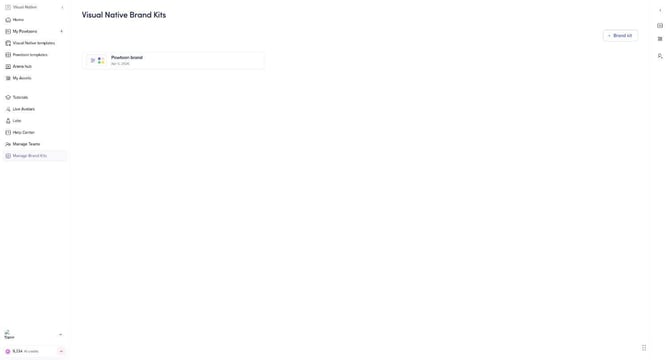
- In your Powtoon workspace, click Manage Brand Kits in the left menu.
- Click the Brand Kit you want to update. It opens showing its logos, color palette and fonts.
Update your logos
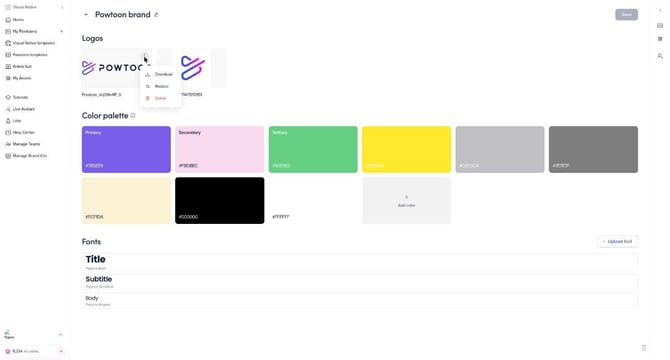
- Hover over a logo and click the three-dot menu in its top-right corner.
- Choose Replace to upload a new file, Download to save a copy, or Delete to remove it.
- To add an icon-only version of your logo for small spaces, click the Logo mark box and upload your file.
- Click Save at the top right.
Logos can be JPG, PNG, SVG or GIF files.
Edit your color palette
- To add a color, click Add color. Pick a shade from the color picker, type its hex code (for example #785EE9), or use the eyedropper.
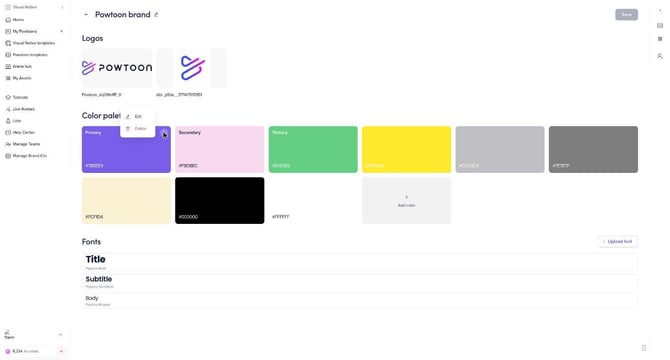
- To change or remove a color, hover over it, click the three-dot menu, then choose Edit or Delete.
- Drag and drop colors to put them in order of priority. The first color is your primary color, followed by your secondary and supporting colors.
- Click Save.
Upload your brand fonts
- In the Fonts section, click Upload font.
- Tick I own or have rights to use this font, then click Upload your font and choose your file.
- To remove a font, hover over it, click the three-dot menu and choose Remove.
- Click Save.
Fonts can be TTF, OTF, WOFF or WOFF2 files. Only upload fonts you own or are licensed to use.
Rename, duplicate or delete a Brand Kit
- Go to Manage Brand Kits and hover over the Brand Kit.
- Click the three-dot menu and choose Rename, Duplicate or Delete.
Tip: you can also rename a Brand Kit from inside it by clicking the pencil icon next to its name. Duplicating is a quick way to start a new kit for a sub-brand or campaign.
Didn't work?
- Can't see Manage Brand Kits? Brand Kits are only available to users with Org Admin rights. Ask your admin to make the change or give you admin rights.
- Changes not showing? Make sure you clicked Save. If you leave a Brand Kit without saving, you'll be asked whether to discard your changes.
- File won't upload? Check it's one of the supported formats listed above.
Still need help?
Get in touch with our Customer Support Team and we'll be happy to help.