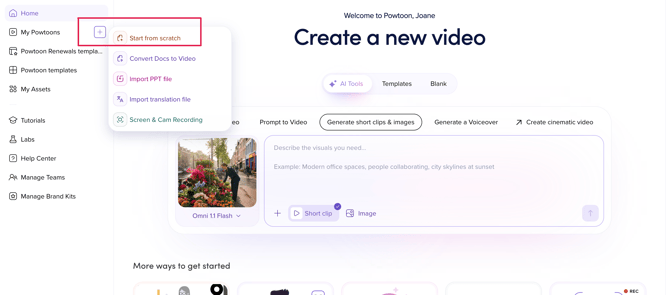
After logging in to Powtoon, you will reach the Workspace page. Use this page to create a new Powtoon.
You can create a new Powtoon using either of the following methods:
1. Use a ready-made template
2. Start from scratch with a blank Powtoon
Use a ready-made template.
A ready-made template requires only minimal editing, enabling you to create a Powtoon quickly and easily.
- Log in to your Powtoon account and access the Powtoon Workspace.
- In the side panel, click Powtoon Templates.
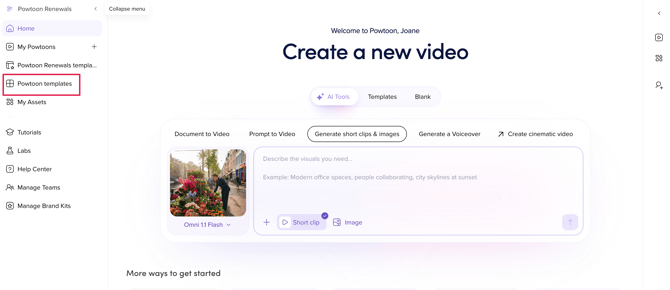
- All the templates in the Powtoon template gallery are displayed.
- Browse the templates or filter by goal to refine the templates that are displayed.

-
When you find a template that interests you, click the Preview button on the template thumbnail.

- If this is a template that you would like to use for your Powtoon, click Edit In Studio.
- The Powtoon Studio will be opened, and you can begin editing.
Start from scratch with a blank Powtoon.
This mode gives you full access to the Powtoon Studio, including all tabs and libraries (Scenes, Backgrounds, Text, Characters, and more). The timeline is also displayed at the bottom of the slide, allowing you to control when each object appears and disappears.
With this mode, you can:
- Create your Powtoon by selecting and adding content from any of the available tabs and libraries.
- Adjust the timing and duration of each object using the timeline.
To get started:
- Click the + sign beside My Powtoons on the left-side panel.
- Select Start from Scratch.
- A new blank Powtoon will open in the Studio, and you can start creating your content!