
Every Powtoon is built from a sequence of scenes. Whether you are starting from scratch or working from a template, you can insert a ready-made scene from the Powtoon scene libraries at any point in your Powtoon. Ready-made scenes arrive fully designed — at most, you will need to update the text to match your message.
Note: The scenes available to you depend on your subscription plan. Higher-tier plans unlock a broader selection of scenes in Powtoon Studio.
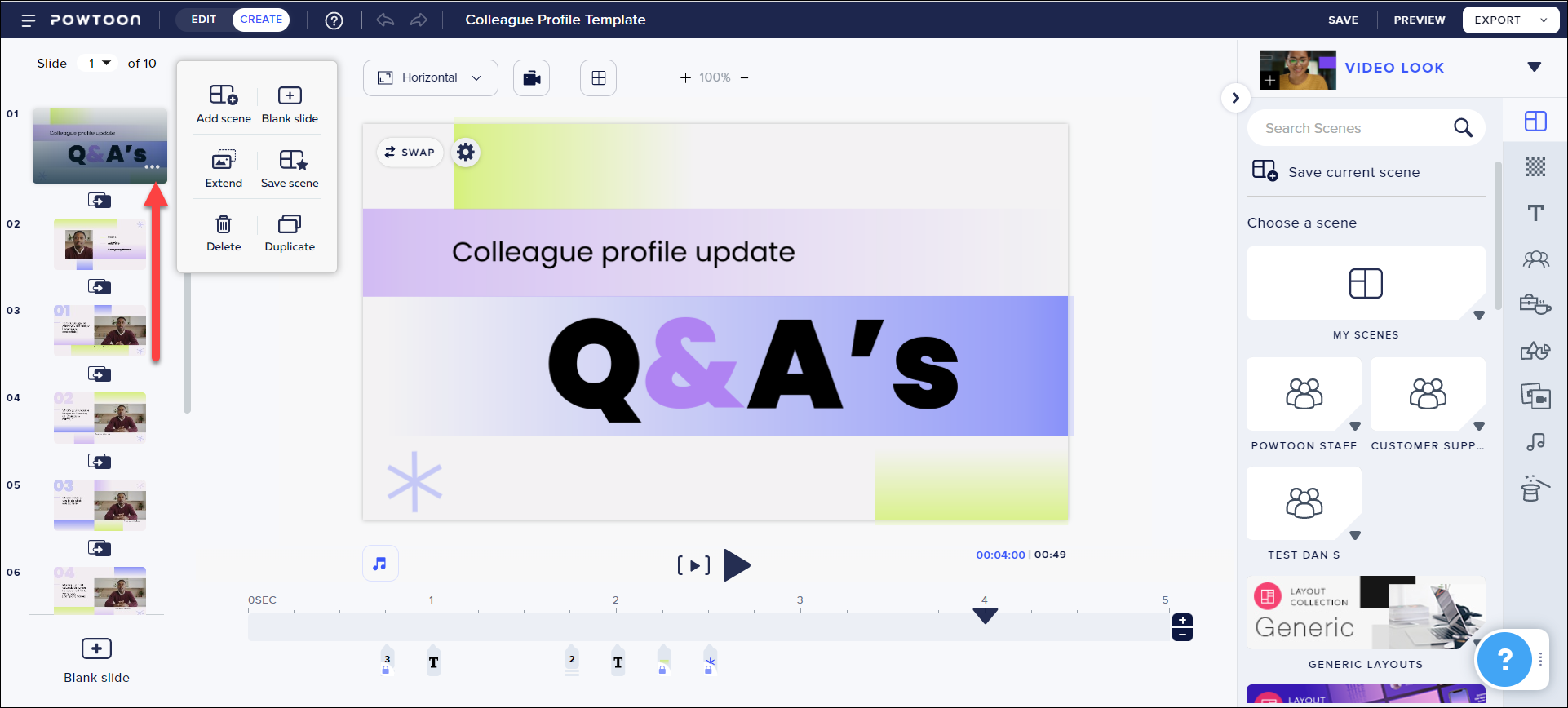
- Select the slide that will appear before the new scene and hover over the three dots in the bottom right corner to display the slide menu. In the example below, the new scene will be added after slide 01.
You can also right-click on the slide thumbnail, click Add Ready-Made Scene, and skip to step 3.
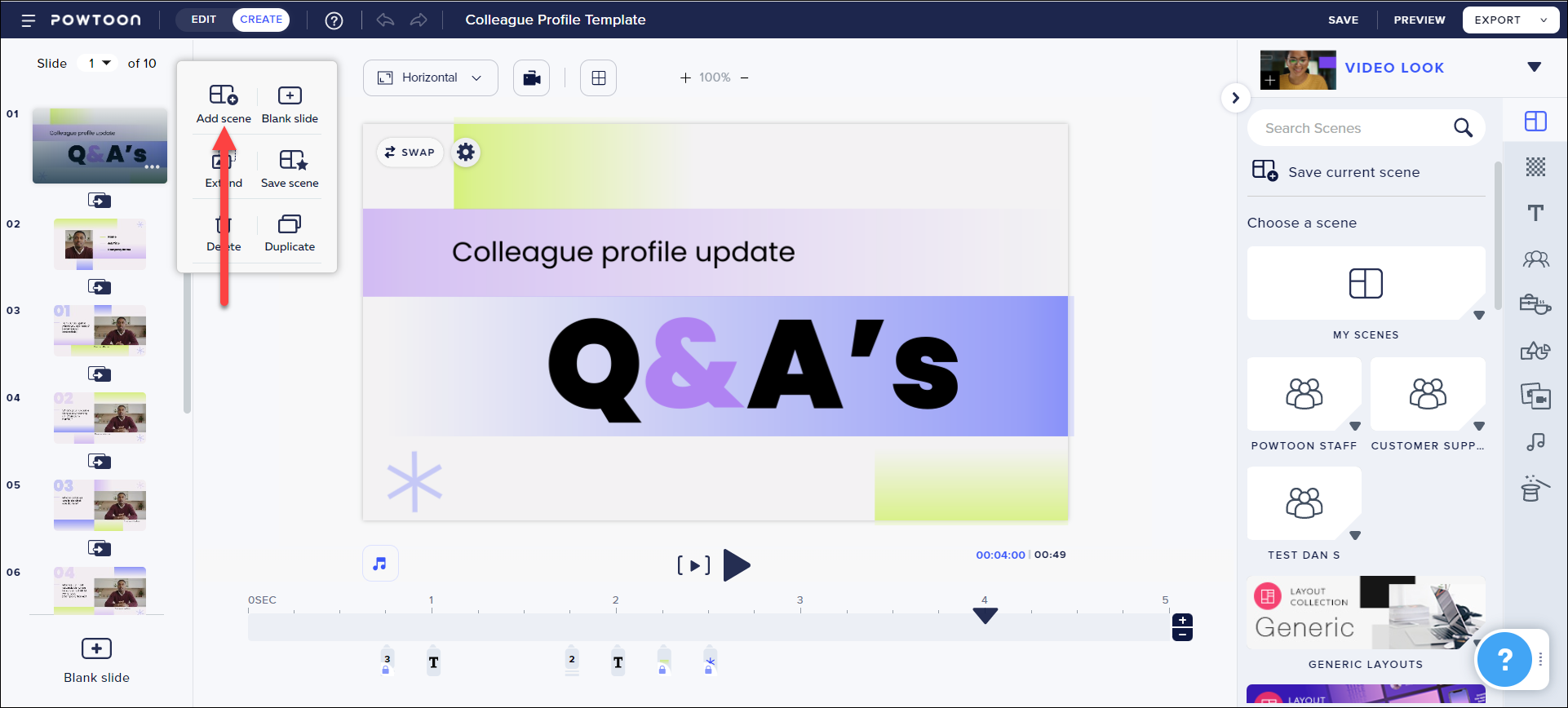
- Click Add scene.
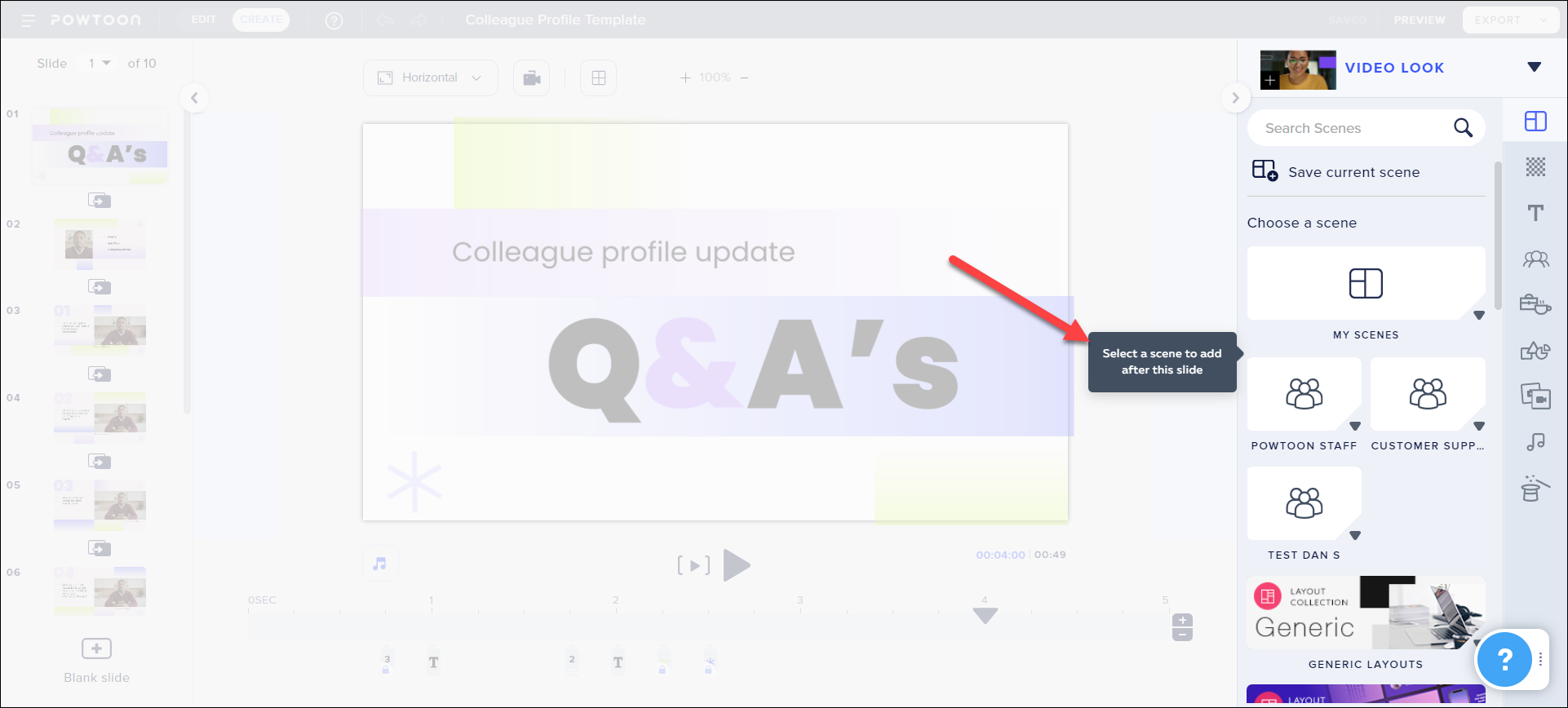
 The following message will be displayed:
Note:
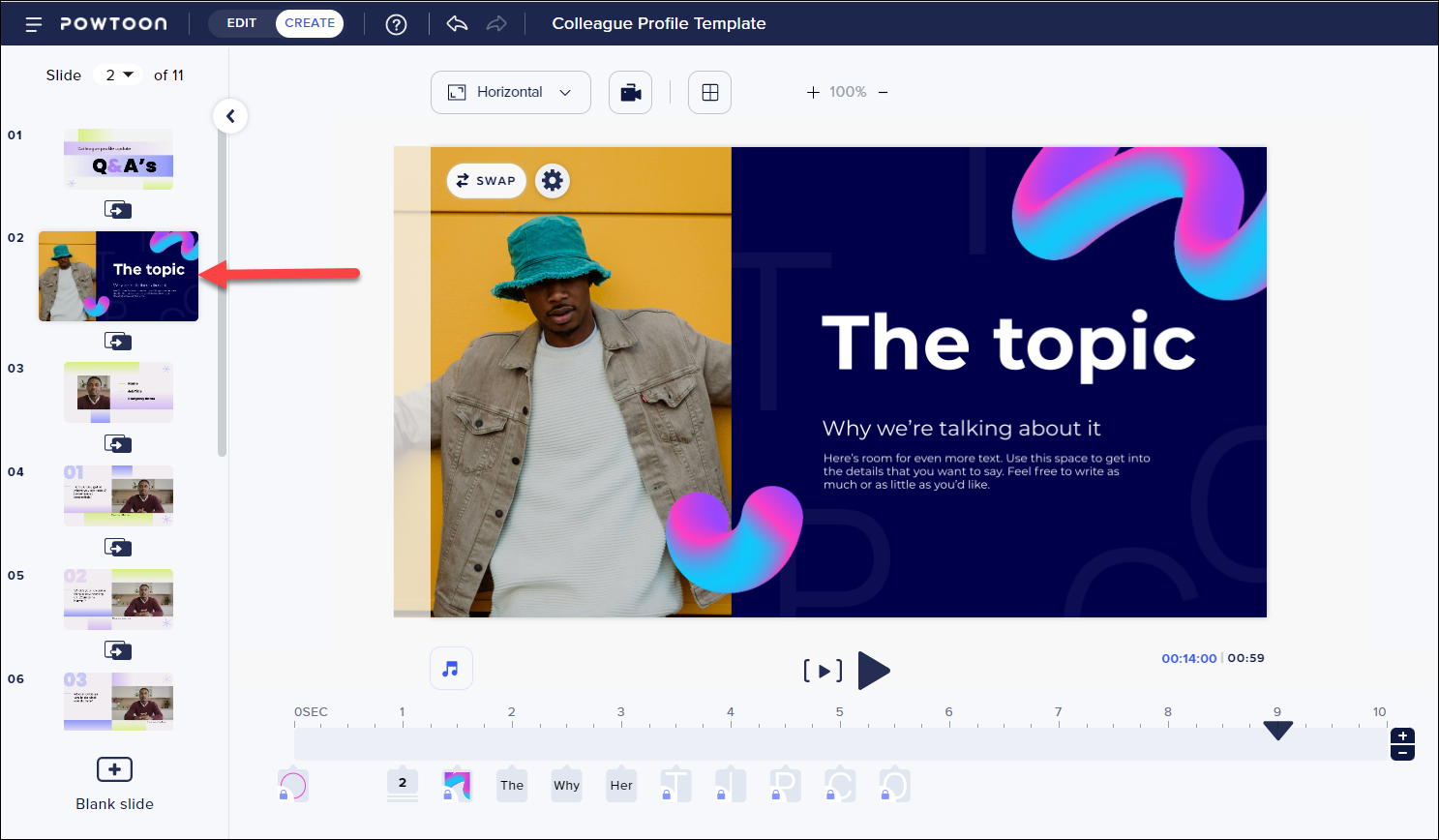
When you browse through the libraries, you'll see scenes that have been designed to match the look of your current Powtoon (in the example below: Real Look). For this reason, it is recommended not to add a scene from a different look.
Note: