
Export your Powtoon as a SCORM package to upload it to a compatible learning management system (LMS) and track learner completion.
In this article:
- Open the Powtoon to export
- Access the export options
- Configure SCORM settings
- Generate and download the package
- Upload the package to your LMS
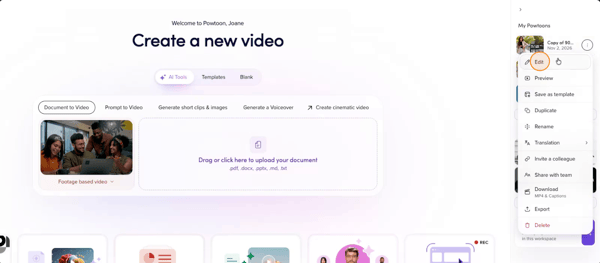
Step 1: Open the Powtoon to export
Open the Powtoon project you want to export.

Make sure the correct project is loaded in the Powtoon Studio.
Step 2: Access the export options
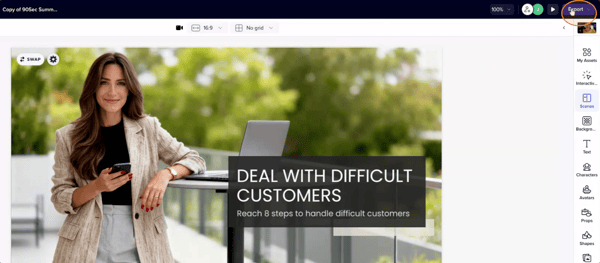
In the upper-right corner of the Studio, click Export or Publish.
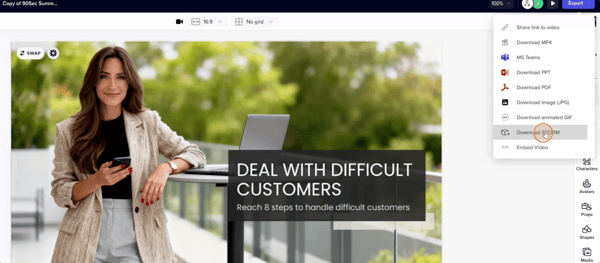
From the menu, select Download SCORM.
Step 3: Configure SCORM settings
a. Choose a SCORM version: SCORM 2004 or SCORM 1.2.
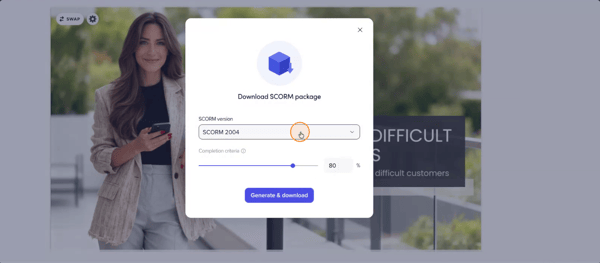
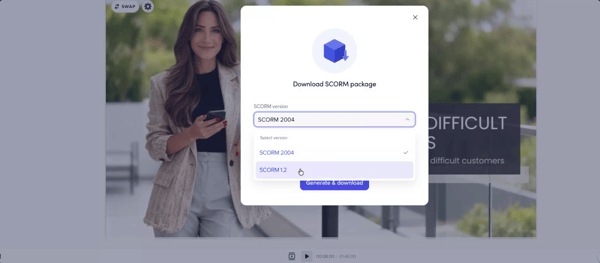
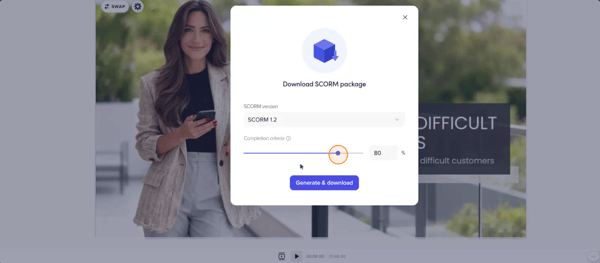
b. Choose the completion criteria: this sets when learners are marked as complete. Pick the option that fits your tracking and reporting needs.
Step 4: Generate and download the package
Click Generate and Download.
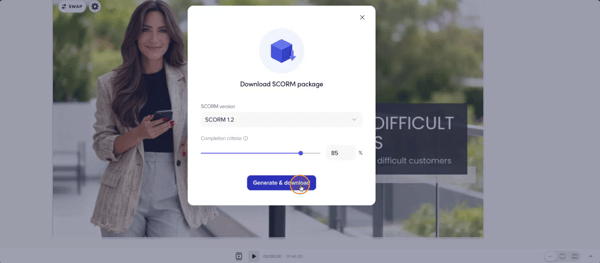
Note: Generating the package can take a few minutes, depending on the size of your Powtoon.
Step 5: Upload the package to your LMS
- Sign in to your LMS.
- Open an existing course or create a new one.
- Use your LMS's SCORM upload or import feature to add the downloaded package.
Once uploaded, your Powtoon is available as SCORM content in the course. For exact steps, check your LMS's documentation.